


How I debloated my TCL smart TV and cleared the clutter, with an AI assistant
The bloatware switched off, a clean home screen, a flip clock my wife asked for, and nothing deleted. Here is how I did it in an afternoon, in plain words.

What was wrong with the TV
We have a TCL BeyondTV2. Out of the box, its home screen was busy. It showed rows of recommended shows and music I had not asked for, plus TCL's own extras running in the background, including one that collects data on how the TV is used.

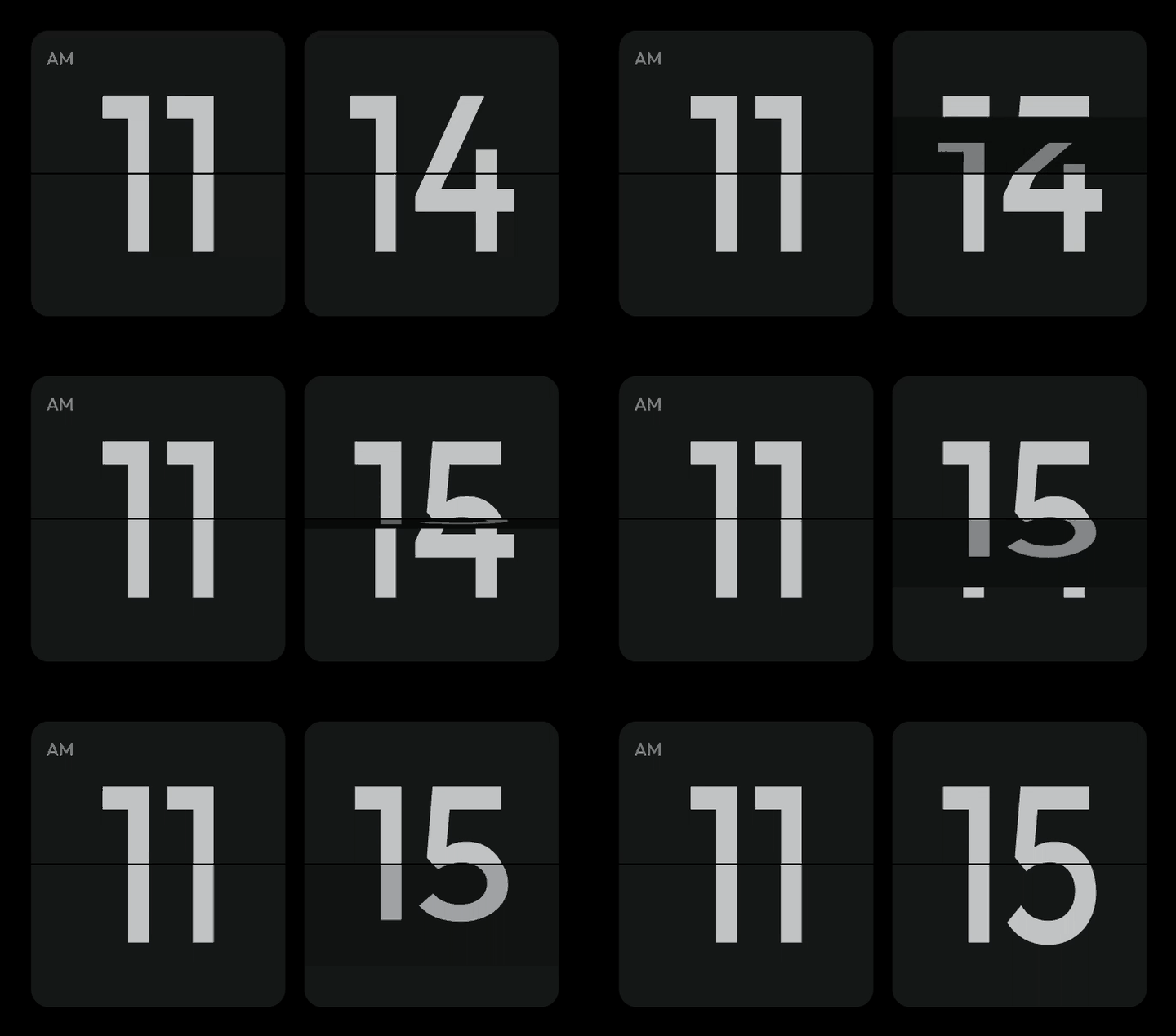
The screensaver was a slideshow of photos from the internet. My wife wanted something simpler: a flip clock, the kind with two big cards that flip over once a minute. The TV had no such option. So I set out to build one.
What I ended up with

- A clean home screen with just the four apps we use: Netflix, Apple TV, YouTube and Spotify, over a photo of our choosing.
- A flip clock screensaver: two big cards on black, hours and minutes, one flip a minute. It works offline.
- Optional ad-blocking: one setting that sends the TV's internet lookups through a free ad-blocking service called AdGuard.
Credit where it is due
None of this started with me. It is built on CleanYourTV, a free, open-source project by Gathin23: github.com/Gathin23/cleanyourtv. "Open source" means the code is public and anyone may use it. In one line, CleanYourTV switches off the clutter on an Android TV and swaps the busy home screen for a clean one, without deleting anything. It already covers more than 90 TV models from 31 brands.
My version, fitted to the TCL BeyondTV2 and with the flip clock added, is here: github.com/Kaikhalid/cleanyourtv.
Will this work on my TV?
- Android TV or Google TV: yes. Many Sony, TCL, Xiaomi, Hisense, Philips and other sets run one of these.
- Samsung or LG: no. They run their own systems, which this project does not cover.
- Amazon Fire TV: only half. You can switch off clutter, but Fire TV will not let you replace the home screen.
How to check: open the TV's Settings, then Device Preferences, then About. If you find that menu and it lists an Android version, you are in the right place. The CleanYourTV page also lists the TVs already tested.
What you need
- A computer (laptop is fine) on the same Wi-Fi as the TV.
- An AI coding assistant. This means a coding assistant such as Claude or ChatGPT's Codex that can run commands on your computer for you. I used Claude.
- About an afternoon. Gathin23's project says it can take around fifteen minutes on a TV that is already on its list. Mine took under three hours, because I fitted the list to my TV and built the clock.
- Patience, and ideally a friend who is comfortable with computers.
The steps, in plain words
- Turn on developer mode on the TV. Developer mode is a hidden settings menu, built into Android TVs, that lets a computer make changes to it. You open it by pressing on one line in the About menu seven times. Then you switch on the option it reveals called USB debugging, which is the TV's name for letting a computer connect.
- Let the assistant connect. You give the assistant the project's instructions and your TV model, and it finds the TV on your Wi-Fi. The TV asks once whether to allow the connection, and you say yes.
- Back up first. Before changing anything, the assistant saves a record of every app and setting on the TV to your computer.
- Switch off, don't delete, the clutter. On my TV, the assistant checked each unwanted app before touching it, and kept away from anything the TV needs to tune channels, take inputs or start up. It switched off just three TCL extras, and it left six it was unsure about for me to decide.
- Swap the home screen. It installs the new, clean home screen and checks it works before switching off the old one. It also writes a rescue plan to bring the old one back if needed. Then it switches the TV fully off and on again to prove the new home screen comes up.
- Add the clock. The flip clock is switched on as the TV's screensaver. You can also add your own photo as the background.
- Turn developer mode back off. When you are done, switch USB debugging off again, so nothing else on your Wi-Fi can connect to the TV.
Can it go wrong?
Not completely. Changing your TV's software can stop it working, including permanently, and may void your warranty (see the warning at the top). This is how I made sure I could undo what I did on my TV:
- Nothing was deleted. On my TV, apps were only switched off, never removed.
- Every step I took could be undone. The backup from step 3 was kept on my computer, and one instruction to the assistant put my TV back how it was. (I wrote more about building things you can undo in how not to leak customer data from a vibe-coded app.)
- The TV's own menus helped too. On my TV, the Apps section of Settings let me switch an app back on. Many Android TVs have a similar menu.
My TV came through a full off-and-on restart with no crashes recorded. That is one TV, though, and no promise for yours. If you go ahead, go slowly.
What went wrong for me, and how it was fixed
Four things broke. None needed a factory reset, which means wiping the TV back to how it came from the shop.
- The screensaver would not start. TCL has its own manager that decides which apps may start in the background, and it blocked the clock. The TV's log, a running diary of what it is doing, said so in one line. The fix was a single permission for the new home screen.
- The clock sat off centre. I had asked for the clock to drift a little after each flip, an idea meant to protect the screen from ghost images. The drift moved the cards, and some digits sat slightly low or to one side. We removed the drift and centred each digit by its actual shape.
- A personal detail went public. The first time I put my version online, it carried a personal detail it shouldn't have. We replaced it straight away. Lesson: check what you publish before you publish it.
- The Input button went dead. With the old home screen switched off, nothing answered the remote's Input button. The new home screen includes a small helper for that button, but it is off by default and the TV's Settings had no switch for it. The assistant switched it on, and the button works again. This is now written up in my version's troubleshooting guide.
What I can't promise
- I can't say the TV is faster. I did not measure speed before and after, so I am not claiming it.
- I tested one TV. One model, one software version, one afternoon. Yours may differ.
- No long-term screen test. I have not run the clock for weeks to check for wear on the screen.
- The phone remote app. It had been missing some presses. The Input button now works, but I cannot say the phone app is fixed.
- Ad-blocking was one test. A well-known advertising address was blocked when I checked. I did not test every ad.
Common questions
Can I remove the bloatware and clutter from my smart TV?
On a TV that runs Android TV or Google TV, yes. A free open-source project called CleanYourTV switches off the extras you don't use and replaces the home screen with a clean one. On my TV, nothing was deleted and every step I took could be undone, but it can still go wrong, so read the warning at the top first.
Will this work on a Samsung or LG TV?
No. Samsung and LG TVs run different systems. Amazon Fire TV gets only half: you can switch off clutter, but you cannot change the home screen.
Do I need to know how to code?
Not much. An AI coding assistant does the typing. You need a computer on the same Wi-Fi as the TV, an afternoon and some patience, and it helps to have someone technical you can call.
Can I undo it?
On my TV, yes. Apps were switched off, not deleted, and one instruction to the assistant put the TV back the way it was. That may not work on every TV: a change can sometimes stop a TV working for good, so read the warning at the top first.
Can I get a flip clock screensaver on an Android TV?
My TCL version of CleanYourTV includes one. It shows two big cards and flips once a minute.
Thank you, Gathin23
All the credit for the clean home screen, the backup and the undo belongs to Gathin23 and CleanYourTV. I fitted it to one more TV and added a clock.
- The original project: github.com/Gathin23/cleanyourtv
- My TCL BeyondTV2 version: github.com/Kaikhalid/cleanyourtv
If you get it working on your TV, send your TV's list back to the original project. The next person with your model then starts where you finished.
I'm Kai Khalid, an operations and digital transformation leader in Nairobi, Kenya. I think about work in four parts: People, Process, Strategy, Technology. This one was mostly Process: back up first, change in small steps, keep a way back.
For the person helping you (optional)

Everything technical lives in the repos, so start with the README of my fork, which has the full TCL BeyondTV2 steps, and the original project's quick start for other TVs.
- Original project and assistant prompt (
PROMPT.md): https://github.com/Gathin23/cleanyourtv - TCL BeyondTV2 steps, debloat list and flip clock: https://github.com/Kaikhalid/cleanyourtv
- Troubleshooting, including the TCL screensaver block and the Input button:
docs/TROUBLESHOOTING.mdin the fork
In short: enable ADB (USB and network debugging), save pm list packages and settings list output first, apply the debloat list with tools/disable.sh, install the launcher with launcher/build-and-install.sh (add INPUT_KEY_SERVICE=1 on a TCL), allow the APP_AUTO_START app-op for the launcher so TCL lets the screensaver start, then switch ADB off and revoke authorisations. Undo with tools/restore.sh and the same debloat list. Read the README before running build-and-install.sh: it installs the launcher, sets it as Home and disables the stock one in one go.
Disclaimer
This guide is shared for general information only, as a personal account of changes I made to my own TV. It is not technical, professional or legal advice, and it is not an instruction or recommendation to change your device. Following any part of it can permanently damage your TV, cause loss of data, apps or features, and void your manufacturer's warranty or support. Results vary by model, software version and region, and the steps may stop working after an update. I make no promises that the information is accurate, complete or current. To the fullest extent permitted by law, I accept no liability for any loss or damage of any kind, to any person or device, arising from the use of this guide or the linked code. Any changes you make are your own decision and responsibility. The linked software is provided by its authors "as is", under its own licence. This guide is not affiliated with or endorsed by TCL, Google or Anthropic.